

Investigate a Configuration Change#
Every time Discovery runs, it compares the current resource configuration to the last known state. When a change is detected, a diff is recorded in the resource’s history timeline. Use the History tab to investigate incidents, detect configuration drift, and generate AI-assisted rollback commands.
Changed in version 1.0.0: A critical bug affecting single-resource event retrieval has been resolved. The History tab now loads in under a second regardless of account size, making AI Rollback Suggestions fully practical for rapid incident response.
Changed in version 1.2.0: Change entries can include the rationalised Discovery metadata introduced in v1.2.0: support level, type-specific properties, and relationship updates. This makes History more useful for understanding both configuration drift and topology drift.
What change history tracks#
Data captured |
Details |
|---|---|
Changed fields |
Before and after values for every modified property |
Detection timestamp |
When the change was detected (note: not when the change was made — up to 12 hours lag if discovered on the next automatic run) |
Change type |
Property modification / resource added / resource deleted |
Metadata context |
Provider, resource type, support level, category, and type-specific properties where available |
Relationship changes |
Added, removed, or updated relationships when the resource graph changes |
Change history is available from the moment a resource is first discovered — resources with a long history may have months of entries.
Opening a resource’s history#
Go to Discovery → click the resource you want to investigate
Select the History tab
The timeline shows entries from newest to oldest
Click any entry to expand and see the full diff
Reading the diff#
The expanded diff shows a side-by-side comparison:
Left side (Before): property values from the prior state
Right side (After): values after the change
Changed fields are highlighted
Type-specific properties are shown under their own JSON section when present
Example — a VM resized from Standard_D2s_v3 to Standard_D4s_v3 shows the hardwareProfile.vmSize property highlighted with both values.
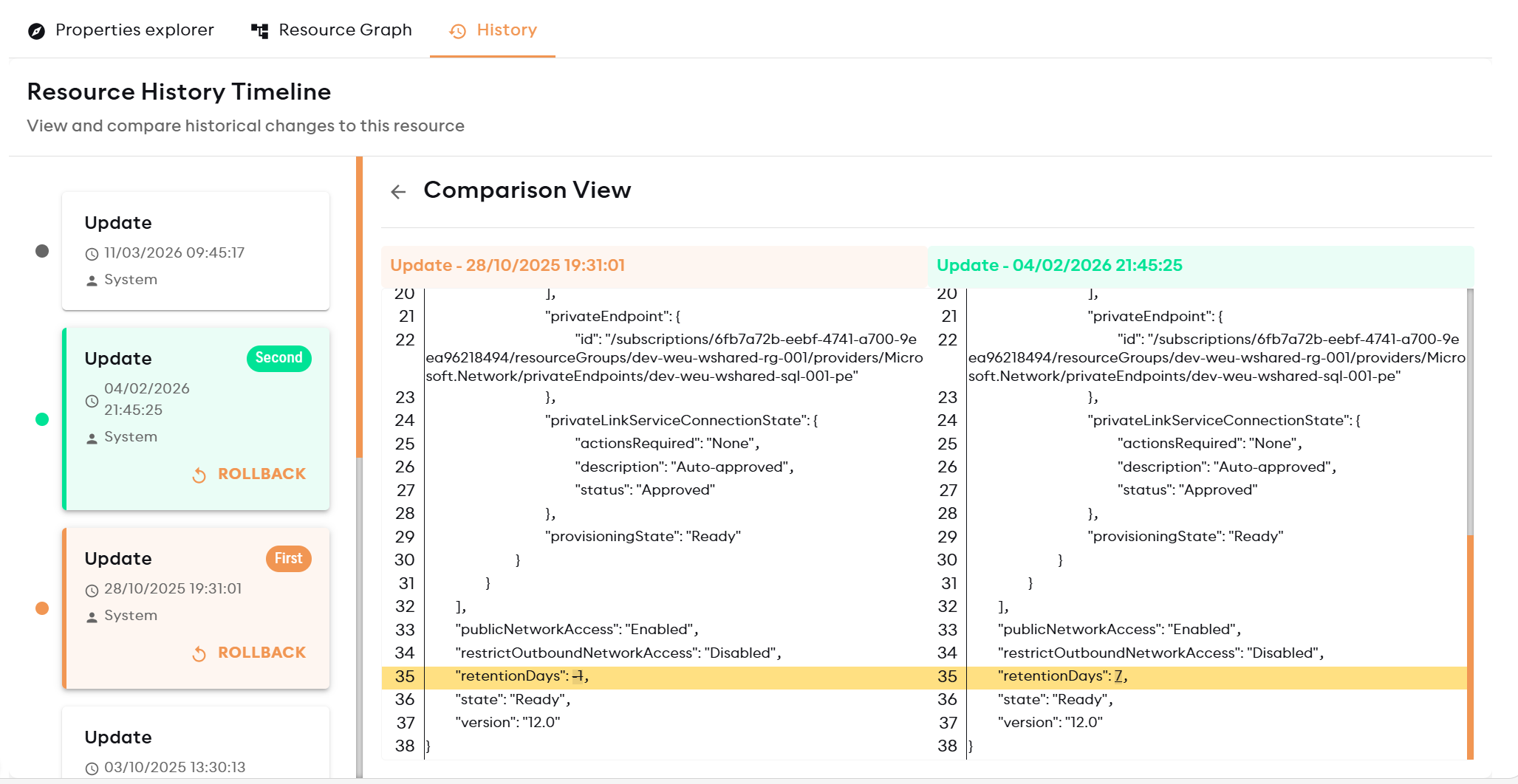
Comparison View — side-by-side diff between two selected history entries. Changed fields are highlighted in yellow.#
AI Rollback Suggestions#
After expanding a change entry, Reply CMP generates example commands to revert the change:
Expand a change entry in the History tab
The AI analyses the changed properties and the resource type
Example CLI or Terraform commands are presented
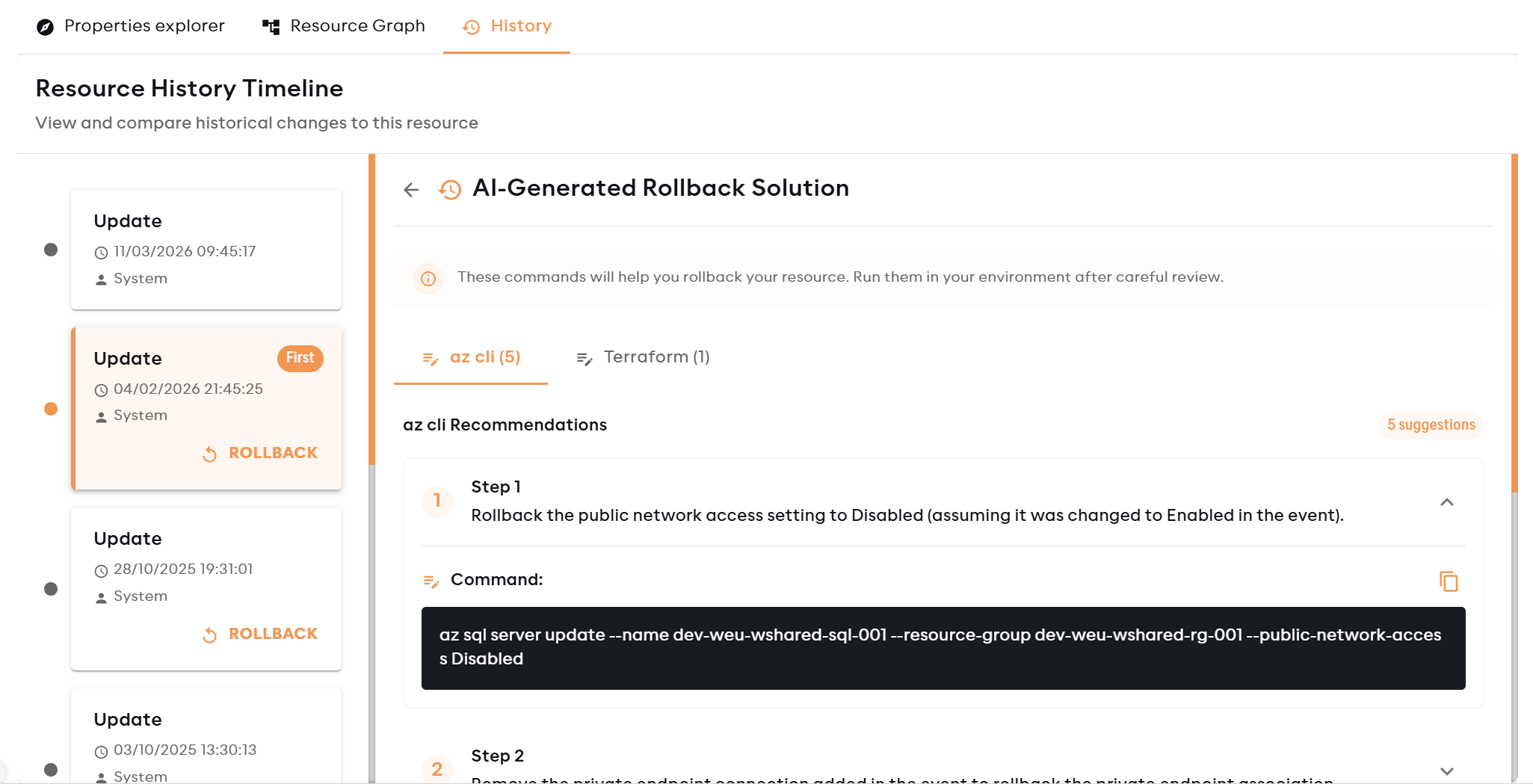
AI-Generated Rollback Solution — the panel presents az CLI and Terraform commands alongside step-by-step instructions for reverting the detected change.#
Output format by provider:
Azure resources →
azCLI commandsAWS resources → AWS CLI commands
GCP resources →
gcloudcommandsTerraform-managed resources →
terraform import+ sample resource block
Example — Azure VM resize rollback:
az vm resize \
  --resource-group myResourceGroup \
  --name myVM \
  --size Standard_D2s_v3
Warning
AI rollback suggestions are examples only. Reply CMP is read-only and cannot execute these commands on your behalf. Always review suggestions before running them. The generated commands are based on the detected change and may need adaptation for your specific subscription, resource group, region, or naming conventions.
Common use cases#
Use case |
How to use History |
|---|---|
Incident investigation |
Find the change entry closest to the incident timestamp; review what properties changed |
Configuration drift |
Check whether a resource managed by Provisioning was manually changed outside Reply CMP |
Topology drift |
Review relationship changes to see whether a resource was attached, detached, moved, or routed differently |
Change audit |
History is timestamped; cross-reference with the Tenant → Audit Log for user-level attribution |
Rollback planning |
Use the AI suggestion as a starting point; adapt names and regions before running |
When rollback suggestions are not available#
AI suggestions require the resource type and changed properties to be interpretable. Suggestions may not appear for:
Resources with custom or proprietary provider types
CostOnly resources with limited provider metadata
Changes to binary or encoded property values
Properties with no known CLI equivalent
The diff entry is still shown even when no suggestion is available — use it to construct the command manually.
Resources managed through Provisioning#
If the resource was created via Reply CMP Provisioning, the Overview tab shows a “View Deployment” link. For Provisioning-managed resources, the recommended rollback path is to revert the metadata in the deployment and re-apply — rather than using CLI commands.
AI-generated rollback suggestions are most useful for resources not managed through Reply CMP Provisioning.