

Manage Deployments and operations#
A Deployment groups Resources that are planned and applied together. They share cloud Connections, one customer runner and one protected state file.
Navigate: left navigation → Provisioning → Deployments.
Create a Deployment#
Select New deployment, or choose Create a deployment from the Home page’s suggested actions or action-bar dropdown. Both open the same setup panel and require deployment write permission; nothing is created until you submit the form.
Enter a unique name.
Enter a region label used for search and filtering.
Select at least one Azure, AWS or GCP Connection.
Add a clear alias when the same provider is connected more than once.
Select Create deployment.
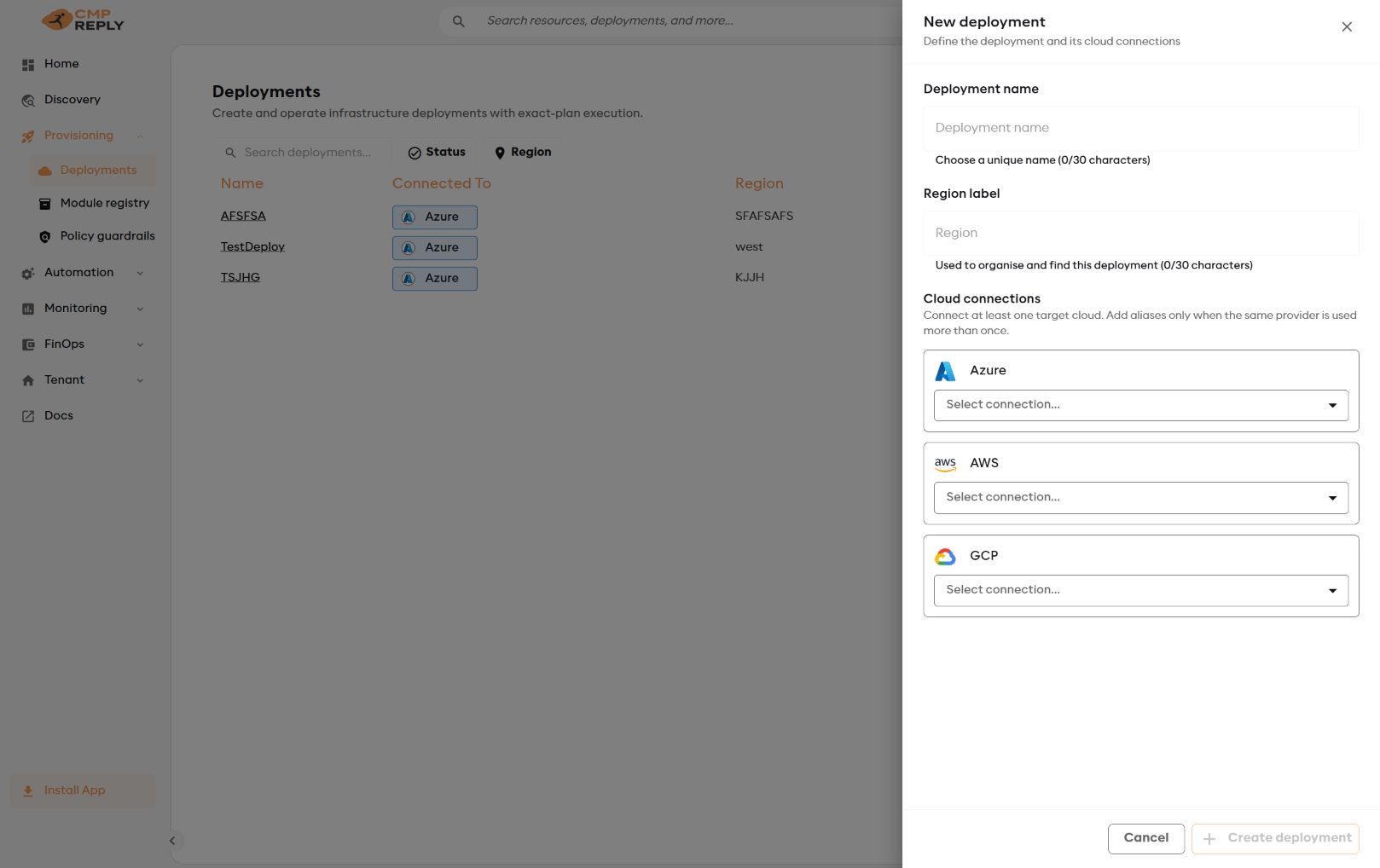
Connections can target one cloud, several clouds or several accounts of the same provider.#
The new Deployment opens on Runner & state. Until a runner and state container are saved, the Deployment shows Setup required and Plan or Apply is unavailable.
Use Reuse setup to copy runner and Storage-account selections from another Deployment in the same tenant. Review and save the copied setup. Reply CMP always generates a different state key for the new Deployment.
Use connection aliases#
Each Resource selects one Connection alias:
use
defaultwhen there is only one Connection for a provider;use purpose-based aliases such as
network,dataorshared-servicesfor additional Connections;verify both provider and alias when Azure, AWS and GCP are used together.
Aliases become Terraform provider aliases in the generated workspace. Changing an alias can change the target account, so always create a fresh Plan afterwards.
Read the Deployment page#
The header shows the Deployment status, copyable ID and region. The page has three tabs:
Tab |
What you do there |
|---|---|
Resources |
View cloud Connections and add, inspect, edit, upgrade or delete Resources. |
Operations |
Review Plan and Apply results and open the exact external pipeline or workflow run. |
Runner & state |
Configure where Terraform runs and which protected state container it uses. |
Resources are managed from one table and always retain their selected module version and Connection alias.
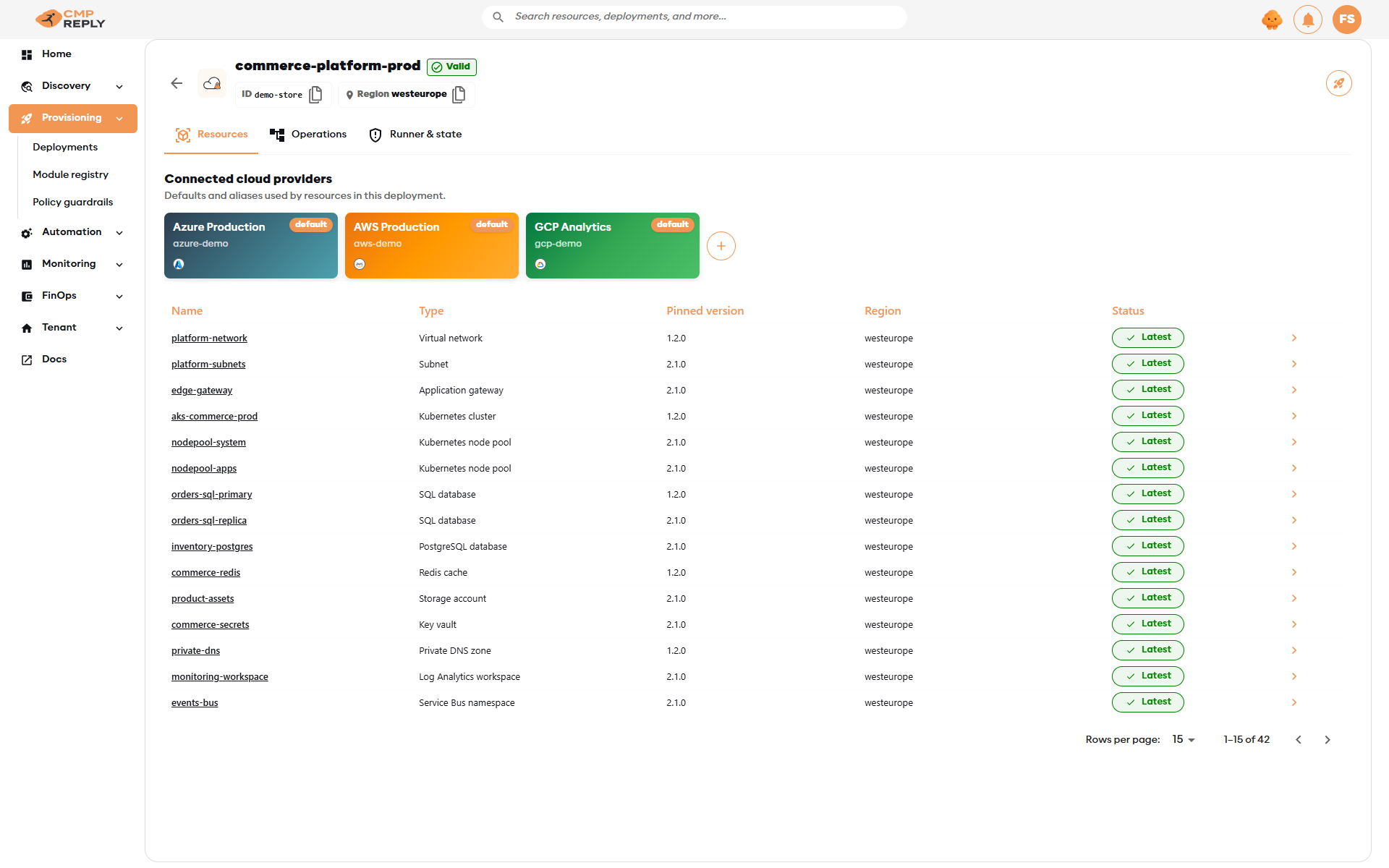
Example enterprise deployment spanning production networking, compute, data and shared services.#
Understand status#
Deployment status#
Status |
Meaning |
What to do |
|---|---|---|
Setup required |
Runner or state is incomplete. |
Open Runner & state and finish the setup. |
Valid |
The latest Apply completed successfully. |
Continue normal operation. |
Error |
An operation failed with a known outcome. |
Open the newest operation and correct the cause. |
Needs attention |
The final runner outcome is uncertain or recovery is required. |
Verify external evidence before choosing a recovery result. |
Ready for removal |
A successful Apply confirmed that the Deployment has no Resources left. |
Delete the Deployment when it is no longer needed. |
Resource status#
Status |
Meaning |
|---|---|
Draft |
Desired input or module version changed but has not been applied. |
Latest |
The latest successful Apply contains this Resource configuration. |
Error |
The latest operation did not apply the intended change. |
Deleted |
Destruction is pending. You can still restore the Resource until the next successful Apply. |
Run Plan or Apply#
Select the rocket action in the Deployment header. Before you continue, the panel shows:
the exact Azure DevOps pipeline or GitHub workflow;
a direct link to the runner;
the Storage account, container and deterministic state key;
the linked Azure Connection alias used for state.
Turn on Plan only to inspect changes without applying them. Leave it off to run Apply.
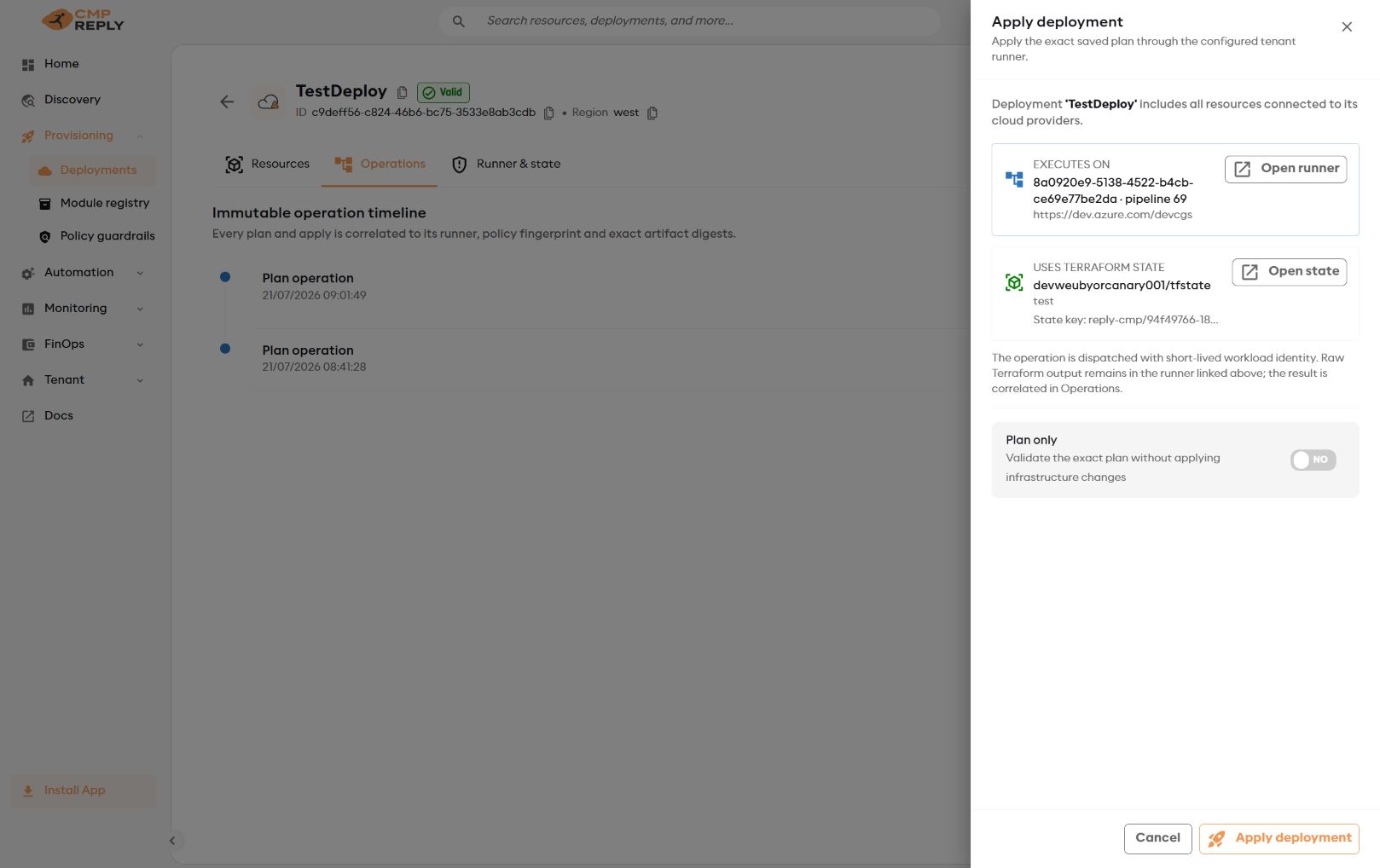
Stop and correct Runner & state if any execution or state reference is unexpected.#
For Plan, the runner builds an isolated workspace and reports the structured plan for policy evaluation. For Apply, the runner creates a fresh plan from the protected state, waits for policy approval and applies that exact saved binary. A previous preview Plan is evidence for review; it is not reused for a later Apply.
Important
An operation covers every pending Resource change in the Deployment, including scheduled deletions. Review create, update, replace and delete counts before Apply.
Any change to Resource input, module version, Connection alias, runner, state or relevant policy requires a new Plan.
Review Operations and logs#
Operations are sorted newest first. Reply CMP initially shows the five newest entries; select Load 5 more for older history. Timestamps follow the user’s local-time preference.
Expand an operation to see:
plain-language status and policy decision;
direct Open runner run link to the exact pipeline or workflow execution;
runner and state references;
operation and external-run IDs;
source manifest, plan and plan-JSON hashes;
policy fingerprint and failure evidence.
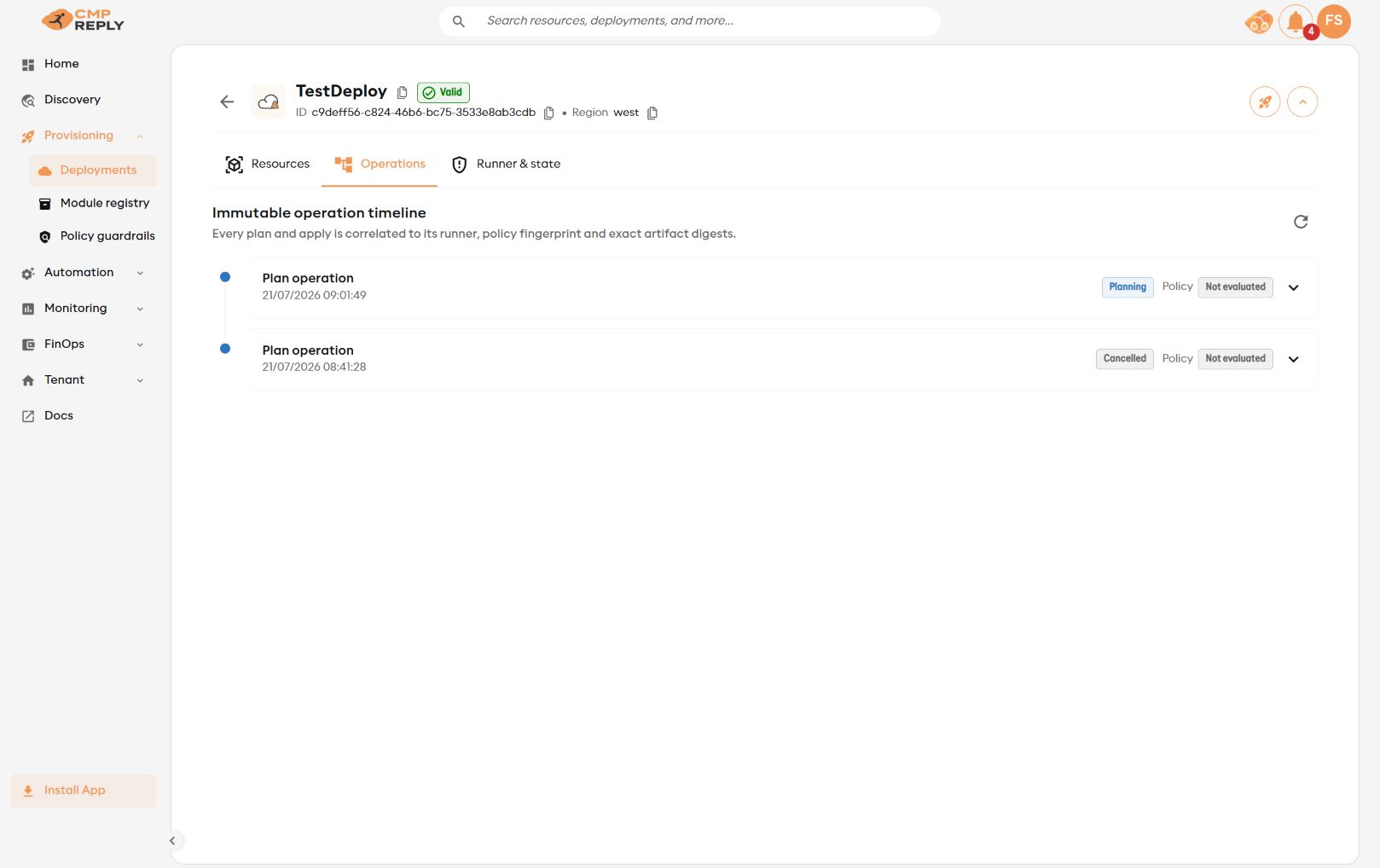
The timeline correlates Reply CMP evidence with the exact external runner execution.#
Complete Terraform Plan and Apply output remains in the customer runner:
Azure DevOps opens the exact run on its Logs page;
GitHub opens the exact Actions run and attempt.
The runner prints the complete native Terraform output for init, validate, plan and apply, preserves ANSI colors supported by the runner UI, and groups each phase so long logs can be collapsed. Output is not truncated.
Reply CMP keeps the structured result and immutable hashes, not raw Terraform logs or credentials.
Respond to an unexpected result#
Policy denied: correct the Resource or guardrail and run Plan again.
Runner failed before Apply: select Open runner run, correct the identity, network, source or state issue and start a fresh Plan.
Needs attention: compare the external run, cloud provider state and Blob versions. Use the guided recovery only after the outcome is known.
State adoption required: migrate the legacy state or import the exact object address, then require a non-destructive Plan. See Adopt an existing Deployment.
Never repeat Apply blindly after an uncertain outcome.
Delete a Resource or Deployment#
Deleting a Resource schedules Terraform destruction; it does not immediately delete the cloud object.
Schedule the Resource deletion.
Run Plan and review all deletes and dependent changes.
Run Apply.
When every Resource has been removed, the empty successful Apply marks the Deployment Ready for removal.
Delete the Deployment record.
To cancel a deletion before Apply, open the deleted Resource, select Activity History, and choose Restore on its newest Delete activity. The Resource returns as a Draft; run a new Plan before the next Apply.
After a successful Apply, the Resource record is permanently removed and Restore is no longer available. If an Apply outcome is uncertain, complete the guided recovery first; Reply CMP does not allow restore while the Deployment needs attention.