

First Login#
This page walks you through the Reply CMP application shell so that every element is familiar before you start a task.
The screenshots use an illustrative enterprise tenant. Resource names, counts, costs and configuration values are example data.
Marketplace subscriptions#
For the full purchase and onboarding sequence, see Marketplace Purchase.
If you purchased through Microsoft Marketplace, select Configure account after purchase and sign in with the purchaser or beneficiary Microsoft account in the customer portal.
Select Request tenant configuration to ask the Reply CMP team to prepare your tenant. The request remains pending until an authorized operator configures the tenant, confirms provisioning and activates the subscription. The team provides your CMP tenant URL and sign-in instructions after setup.
Marketplace sign-in and an active subscription do not automatically create a CMP tenant or grant application access. Use the customer portal to manage the subscription, and your tenant URL to use Reply CMP.
The application layout#
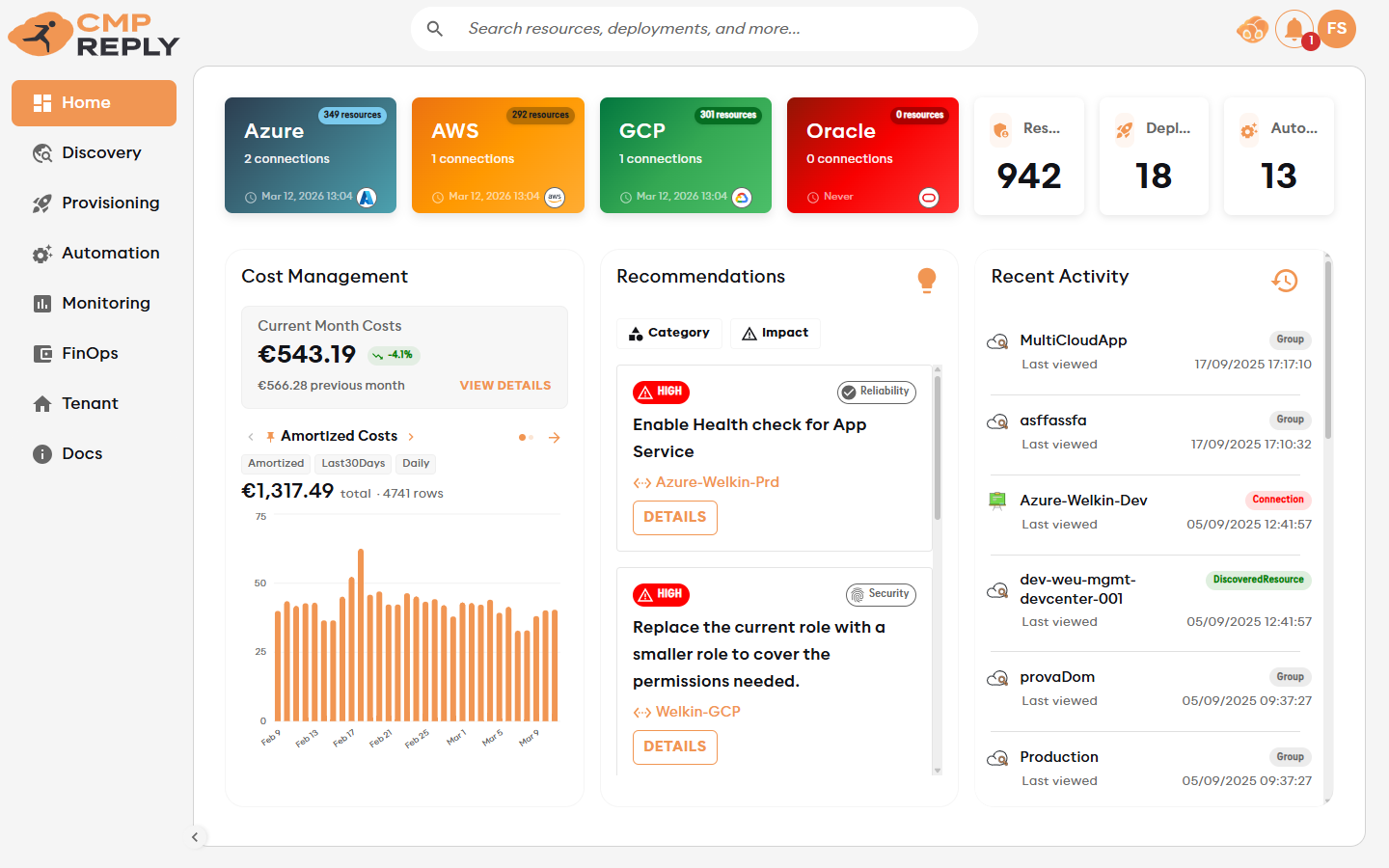
When you first log in, you will see the main application shell. It has four areas:
Left sidebar — main navigation, collapsible to icon-only via the toggle at the bottom-left
Top bar — Reply CMP branding and global search; notifications, your account avatar, and the CMP Agent chat button on the right
Main content area — changes based on the selected navigation item
Breadcrumb / page title — shows your current location inside the platform
Left navigation items#
Item |
What it does |
|---|---|
|
Operational workspace: key stats, spending, actionable signals and recent items |
|
Cloud resource inventory (CMDB) across all providers |
|
Cost visibility, allocation, analysis, optimisation, and monitoring dashboards |
|
Governed Terraform Deployments, approved Modules and Policy guardrails |
|
Scheduled start/stop and tag-enforcement policies |
|
Infrastructure dashboards and monitoring alerts |
|
Users, connections, and auditing |
 Home
Home Discovery
 FinOps
 Provisioning
 Automation
 Monitoring
 Tenant
The sidebar collapses to icon-only by clicking the toggle at the bottom. All items remain accessible via tooltip when collapsed.
The Home page#
The Home page is your personal command centre. It surfaces the most important data from across the platform in one view.
On desktop, the overview fills the available workspace: provider cards stay compact while Spending and the larger Operational overview adapt to the remaining width and height, without scrolling inside the cards or the page. Charts and spacing become more compact on shorter screens. Previous/next controls let you browse operational signals and longer spending breakdowns; the number of visible rows adjusts to the available space. Select a signal’s title to open its alert history, budget or complete provider recommendation. On narrow or very short screens, the panels reflow into two columns or a vertical stack with only page scrolling.
The header suggests useful next steps, such as managing or adding connections, designing a report, creating a deployment, or asking the CMP Agent. Two shortcuts rotate gently; narrow screens show one. They pause while you hover or focus them. The chevron at the end of the action bar lists all actions available to your role. Reduced-motion preferences keep suggestions static. Creation shortcuts open the existing setup page or panel, and Ask our agent opens chat without sending a message. Its mascot gains colour on hover or keyboard focus, as it does for operational questions.
Section |
What it shows |
|---|---|
Cloud footprint |
Compact provider cards and Resources, Deployments, and Automations counts; select a card to open the relevant area |
Spending overview |
Month-to-date actual costs compared with the same elapsed period last month. By provider is the default: a donut and an itemized legend for the selected period, using the FinOps provider colours (Azure blue, AWS orange, GCP green). No allocation groups are required. Choose By organization for the organizational view. Up to 3 pinned queries from FinOps → Analyze replace the default breakdown |
Operational overview |
Enabled Firing alerts, exceeded or near-limit budgets (at least 90% used), and High-impact provider recommendations. Select a source to filter signals or ask the Agent a contextual read-only question |
Recently viewed |
The header history button opens a compact, anchored menu of up to seven recent items. Fewer appear when space is limited; it has no internal scroller. Rows show readable item types and relative viewing times, with exact timestamps on hover |
Signals retain their source limitations: alert state is the latest recorded evaluation, budgets use each group’s reported budget period, and provider recommendations are snapshots without a resolution state. Loaded means the Home retrieved the API response, not that a provider sync occurred. Missing, failed, overdue or inaccessible sources are not an all-clear.
Operational questions retrieve the relevant facts through the Agent’s available tools and ask for a concise diagnosis or concrete provider-specific remediation. Recommendations can be explained without claiming a live IAM audit; alert questions use supported monitoring queries without forcing evaluation or sending notifications. See CMP Agent.
If no cloud accounts are connected, the Home page introduces the Connect → Discover → Understand journey. Connect your first cloud opens connection setup for users with connection write access; other users see administrator guidance. Empty panels explain what will appear there instead of filling the page with zero-value charts. Loading and unavailable data are shown separately.
The provider donut shows positive provider totals. Credits remain visible in the legend and are included in the net total at its centre; they are not rendered as positive slices. Genuine zero costs use a neutral ring instead of a no-data state. The provider legend stays below the chart, with all provider totals visible together. Hover over a coloured segment to see its provider name and actual cost; the tooltip sits outside the hovered point without covering the central total.
The workspace month-to-date total also includes billing costs not linked to a connection, for example GCP billing-account charges without a project. Provider and connection breakdowns, including Assess, only show attributed costs, so their total can be lower even for the same period. The Home total includes a note and an information tooltip explaining this distinction. Its month-to-date period does not change when you select another range for the breakdown.
Tip
Pin up to 3 custom analysis views from FinOps → Analyze to make them appear on your Home page as a personal dashboard.
Notifications and recent items#
The notification bell in the top bar shows platform events that need your attention, such as completed background operations, alert rule state changes, budget warnings, or failed actions. Open the bell to review notifications, jump to the related entity, or dismiss them one at a time. Use Dismiss all when you have reviewed the list.
Reply CMP also keeps track of recently opened items, such as resources, dashboards, reports, connections, and policies. Recent items help you return quickly to the work you were doing without navigating through the full module tree.
The Account menu#
The account avatar in the top-right opens a popover with profile and session controls.
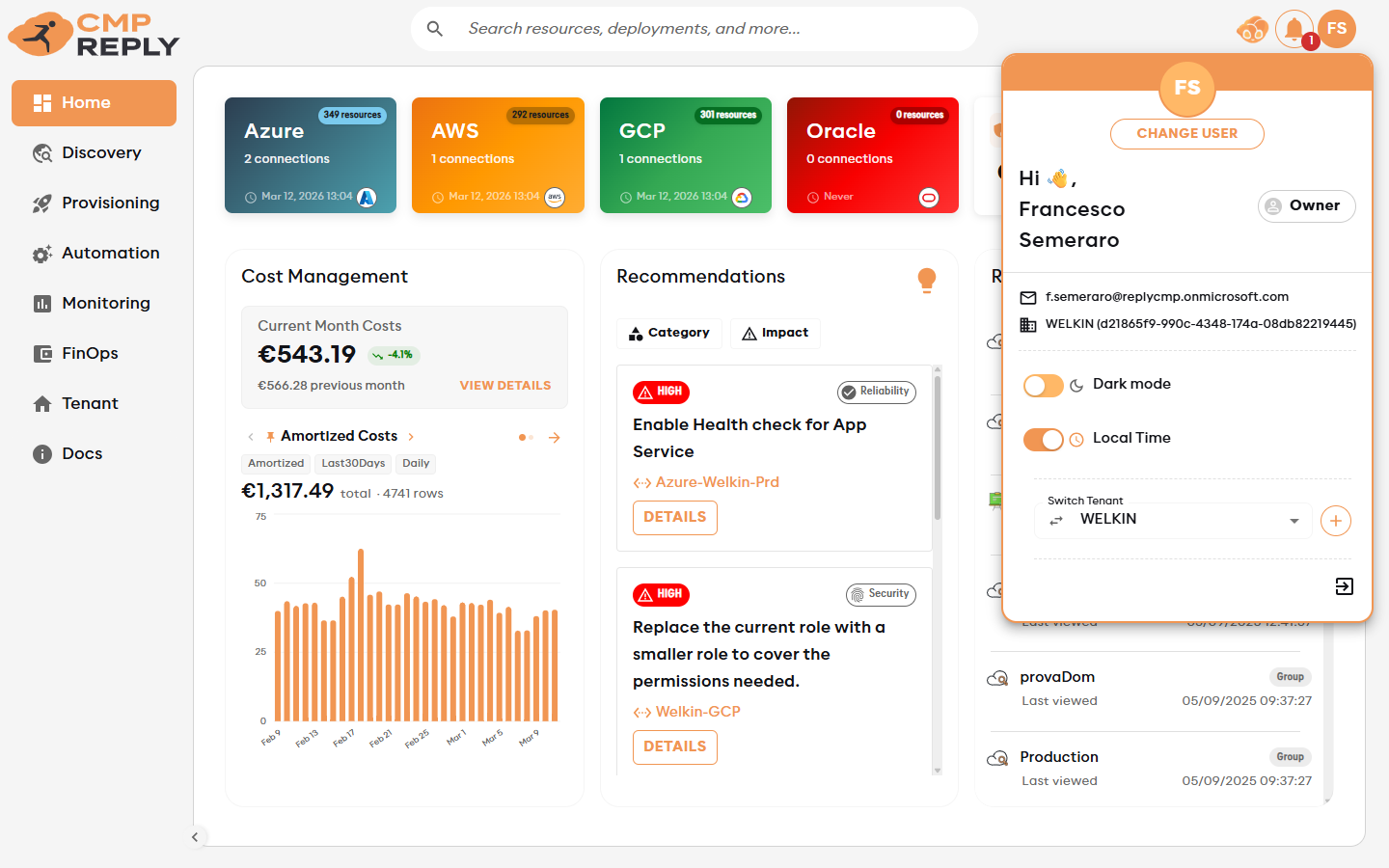
Item |
Description |
|---|---|
Display name / email |
Your identity as logged in via Microsoft authentication |
Dark mode toggle |
Switches the entire application to a dark colour scheme; preference is saved per browser |
Local Time toggle |
When on, all timestamps use your browser’s local timezone; when off, UTC is used |
Tenant switching |
If you have the Owner role and multiple tenants, switch without re-logging in (takes ~30 seconds) |
Logout |
Ends your session immediately |
The CMP Agent button#
The  mascot in the top-right bar opens the CMP Agent — Reply CMP’s built-in AI assistant. It is always available from any page.
You can ask it questions like:
“What was our AWS spend last month?”
“Which groups are close to their budget?”
“How many VMs do we have in production?”
See CMP Agent for the full guide.