

The FinOps Lifecycle#
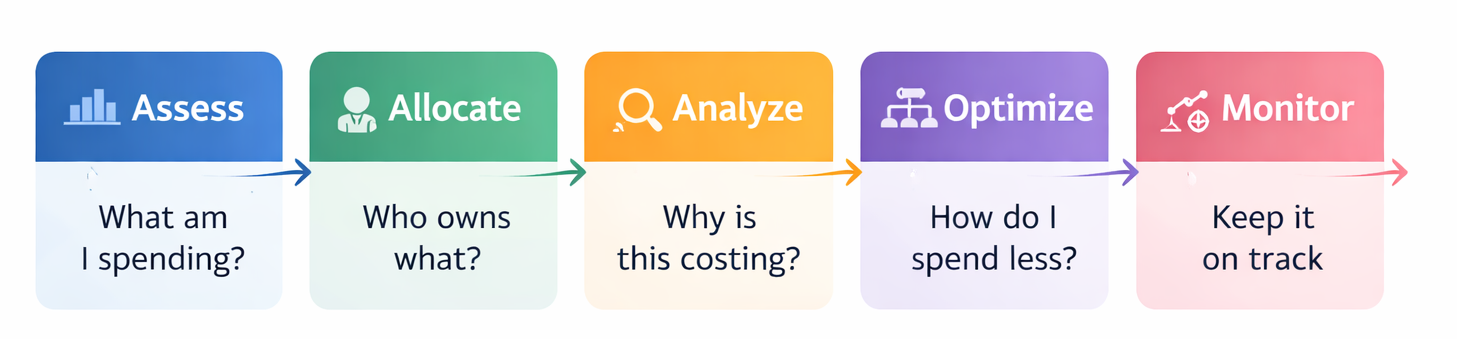
The FinOps module maps to the industry-standard FinOps lifecycle, adapted for multi-cloud. Every phase has a dedicated workspace in Reply CMP. You do not need to complete all phases before getting value — most teams start with Assess and extend into Allocate as they mature.
The five phases#
Assess#
The first dashboard you check. It gives you total spend, daily average, provider breakdown, category breakdown, and cost trends over the current period. Use it to detect anomalies and understand the overall picture before drilling down.
Allocate#
Where cost ownership becomes explicit. You build an organisation hierarchy (Groups), define flat dimensions (Environments, Projects), and write tag-based rules that automatically assign resources to the right owner. Budgets live here — set monthly or quarterly envelopes on any Group node with forecast alerts.
Analyze#
Ad-hoc cost investigation with up to 2 simultaneous grouping dimensions, 15 filter conditions, and 4 chart types. Results are URL-shareable and can be saved as pinned queries that appear on your Home page.
Optimize#
AI-powered savings opportunities. Native recommendations from Azure Advisor, AWS Trusted Advisor, and GCP Recommender are enriched with AI-generated savings estimates and confidence ratings. Commitment tracking (Azure Reserved Instances, AWS Savings Plans, GCP CUDs) also lives here.
Monitor#
Customisable dashboards built from 12 widget types. Share with teammates (view or edit permission). 8 pre-built presets for different personas (CFO, DevOps, FinOps Analyst, and more). Scheduled and on-demand email reports.
Cost types: Actual vs Amortised#
Note
Two cost types are available throughout the FinOps module:
Actual — raw invoiced costs as billed each day; best for operational monitoring and anomaly detection
Amortised — commitment-based charges (reserved instances, savings plans, committed use discounts) spread evenly over their full term; better for trend analysis and budget forecasting
Switch between them using the Cost Type toggle in every FinOps view. The forecast feature in Analyze is only available with the Actual cost type.
Data availability#
Note
Cost data is available up to yesterday (T−1). Today’s costs are not yet available. Providers may revise prior days as billing is finalised — Reply CMP reconciles these retroactive updates automatically.
Note
All FinOps views, budgets, and exports display amounts in your tenant’s reporting currency. This is set when the tenant is created and can be viewed in Tenant → Settings.
Where to start by persona#
Persona |
Recommended starting point |
Why |
|---|---|---|
FinOps analyst (first day) |
Assess |
Understand the landscape before anything else |
Executive / CFO |
Assess → Monitor (CFO preset dashboard) |
High-level view first, then persistent visibility |
Team lead (budget owner) |
Allocate → Budgets |
Set up cost ownership and alerts |
Cloud engineer (reducing costs) |
Optimize |
Start with high-impact AI savings recommendations |
FinOps analyst (deep investigation) |
Analyze |
Filter, group, and export specific cost questions |
Tip
Most common first-week workflow: (1) Connect providers → (2) Check Assess for total spend by provider → (3) Build your Group hierarchy in Allocate → (4) Review Optimize recommendations → (5) Create a Monitor dashboard for your team.
AI capabilities in FinOps#
AI Savings Estimation — every Optimize recommendation includes a confidence-rated monthly savings estimate; see AI Savings Estimation
CMP Agent — ask natural language questions about any cost data from any FinOps phase; see CMP Agent
Budget forecast — an ML model (up to 30 days) and linear regression (beyond 30 days) predict period-end spend, used to fire Budget threshold alerts before a budget is exceeded